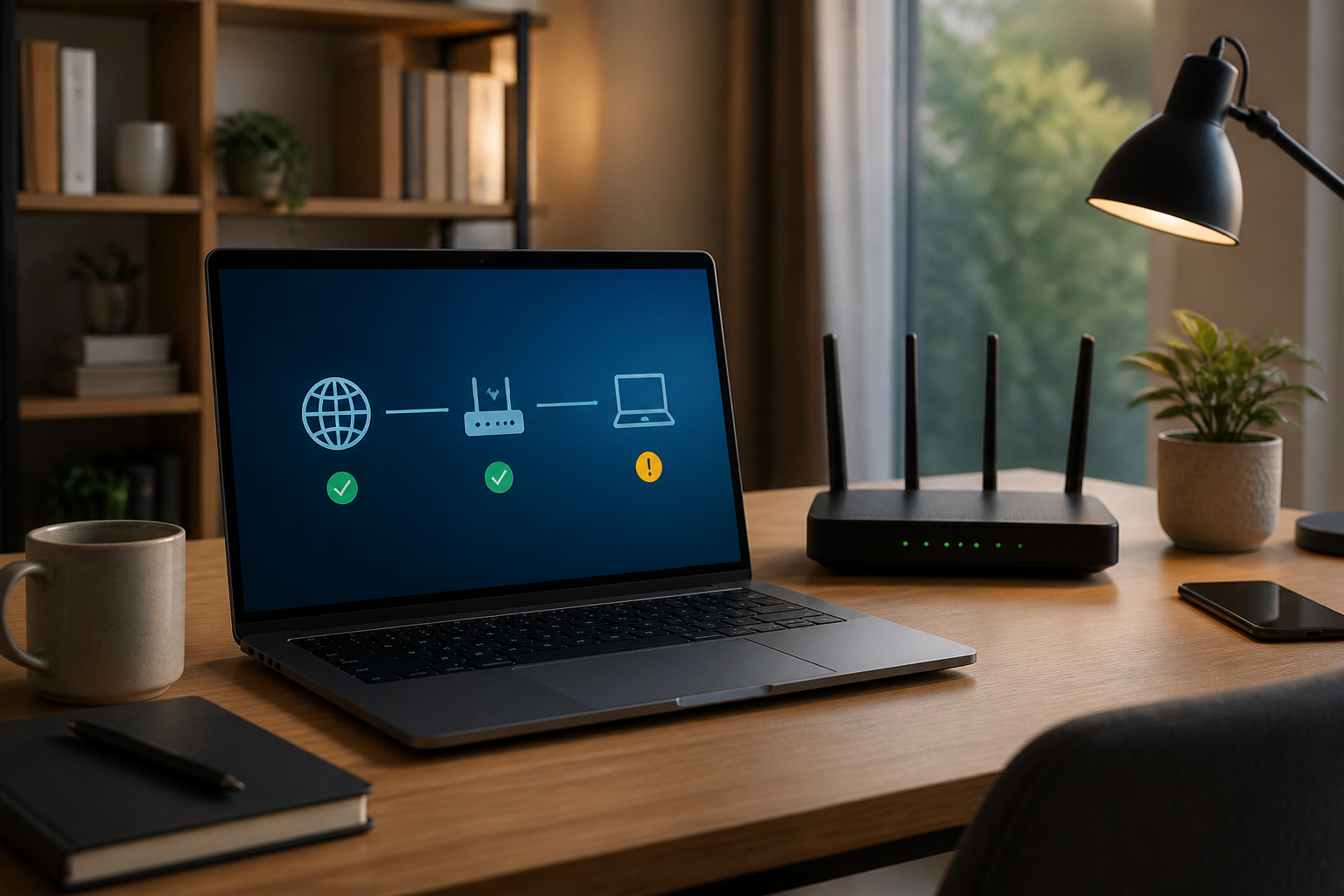
Issues like this occur quite frequently: a laptop or phone shows Wi-Fi connected, but the browser fails to open pages, apps cannot load data, or the connection feels very slow. Many people immediately turn the router off and on without investigating the source of the problem.
In fact, an internet connection consists of several layers. The device must connect to the router, the router must gain access from the internet provider, and then the system must be able to translate site names like example.com into IP addresses. If any part has an issue, Wi-Fi may still appear active even though the internet cannot be used.
Start with the simplest symptoms
Before changing any settings, observe the pattern of the problem. Are all devices in the house unable to go online, or is it just one laptop? Are all sites failing to load, or just one specific service? Are apps like WhatsApp still receiving messages while the browser cannot open sites?
The answers help narrow down the source of the problem:
- All devices affected: the issue is likely with the router, modem, cables, or the internet provider's network.
- Only one device affected: the issue may be with the network configuration, VPN, DNS, or that specific device's adapter.
- Only one site fails to open: the problem could originate from that site, DNS, browser cache, or specific blocking.
- Intermittent connection: check the distance from the router, signal interference, network congestion, and the condition of network devices.
Step 1: Test other devices
Use another phone or laptop connected to the same Wi-Fi. Try opening several different sites, such as a search engine, news site, and commonly used services.
If other devices also fail, do not rush to change the laptop's settings. Focus the check on the router or modem. Conversely, if other devices are normal, the problem is likely only with the first device.
Step 2: Check the router indicator lights
Look at the lights on the modem or router. The names of the indicators vary, but there are usually lights for power, internet connection, Wi-Fi, and local network. A dead or blinking internet light in an unusual pattern may indicate that the router is not obtaining a connection from the service provider.
Ensure that the power cable, network cable, and cable from the internet source are securely connected. Do not repeatedly unplug the cables, as this action does not help if the actual disruption occurs on the internet provider's side.
Step 3: Restart in the correct order
Restarting is still a useful step, as long as it is done correctly. Turn off the router and modem if they are separate devices. Wait about a minute, then turn on the modem first. After the connection indicator stabilizes, turn on the router and wait a few minutes before testing the connection.
This order allows the devices to rebuild the connection from the internet source to the Wi-Fi network. Avoid pressing the small reset button on the back of the device unless you want to restore the configuration to factory settings. That button is different from the power button and can erase the Wi-Fi name, password, and other settings.
Step 4: Forget the network and reconnect
If only one device is having issues, delete the saved Wi-Fi profile and reconnect. A network profile is a collection of information stored by the device, including the network name, password, and specific configurations.
On Windows, open Wi-Fi settings, select the network in use, and choose the option to forget the network. After that, reconnect and enter the password. On Android, iPhone, macOS, and other operating systems, the name is usually similar: Forget This Network or Lupakan Jaringan.
This step often resolves issues when the device has stored outdated configurations or fails to authenticate correctly.
Step 5: Differentiate DNS issues from connection issues
DNS is the system that translates domain names into IP addresses. A simple analogy is that DNS is like an internet address book. If there is a DNS issue, the connection may actually be available, but the device does not know where to send requests when you type a site name.
One clue is when some apps can still be used, but the browser fails to open many sites. You can try changing the DNS to a trusted service, such as public DNS from a provider you trust, or revert it to automatic options to test if the problem originates from manual configuration.
After changing the DNS, close and reopen the browser. On computers, the DNS cache can also be cleared. In Windows, open Command Prompt and run:
ipconfig /flushdnsThis command only clears temporary DNS records on the computer. It is not a solution for total internet disruption, but it is useful when old site addresses are stored or domain resolution fails.
Step 6: Temporarily disable VPN and proxy
VPNs and proxies change the path of the internet connection. If the VPN server has issues, the proxy configuration is incorrect, or the connection drops midway, the device may appear connected to Wi-Fi but fails to access sites.
Temporarily disable the VPN, then try opening several sites. If the connection returns to normal, check the server, application, and VPN settings before using it again. Do not delete the application directly if the VPN is used for office needs or access to internal systems; contact the network administrator if necessary.
Step 7: Check IP address and gateway
Devices connected to the router usually obtain an IP address automatically. If the address is invalid or the gateway—the router address that serves as the network's exit—is not detected, the device cannot forward traffic to the internet.
Typically, selecting the option to obtain an IP address and DNS automatically is sufficient. You can also disable and then re-enable the Wi-Fi adapter to request new network configurations. Avoid manually entering an IP address if you do not understand the network structure, as incorrect configurations can make problems harder to trace.
Step 8: Check for disruptions from the internet provider
If all devices fail to connect after the router has been restarted, the disruption is likely outside the home. Check the internet provider's official app or channel using a cellular network. Look for maintenance information, regional disruptions, or billing status.
When contacting customer support, provide specific information: when the problem started, whether all devices are affected, the condition of the indicator lights, and whether the router has been restarted. This information is usually more helpful than simply saying 'the internet is down.'
What does this mean for us?
Wi-Fi and the internet are not the same thing. Wi-Fi is a wireless connection between devices and the router, while the internet is access from the router to the outside network. Understanding this difference makes the troubleshooting process more focused.
Most importantly, start with the safest and easiest checks: test other devices, observe indicators, restart in the correct order, forget the network, and then check DNS or VPN. Do not immediately perform a factory reset, as this step can erase configurations and may not necessarily resolve the source of the problem.
Quick checklist
- Test the connection on other devices.
- Check the indicator lights and cables of the router.
- Restart the modem and then the router with a pause.
- Forget the Wi-Fi network and reconnect.
- Temporarily disable VPN or proxy.
- Test DNS and clear the cache if only certain sites fail.
- Contact the internet provider if all devices are affected.
– Rio Yotto @rioyotto